More guides
 Vendor Guides
CrowdGen by Appen: Account, Projects and Quality Guide
Read guide Vendor Guides
TELUS Digital AI Community: Application and Qualification Guide
Read guideDocument verification walkthrough
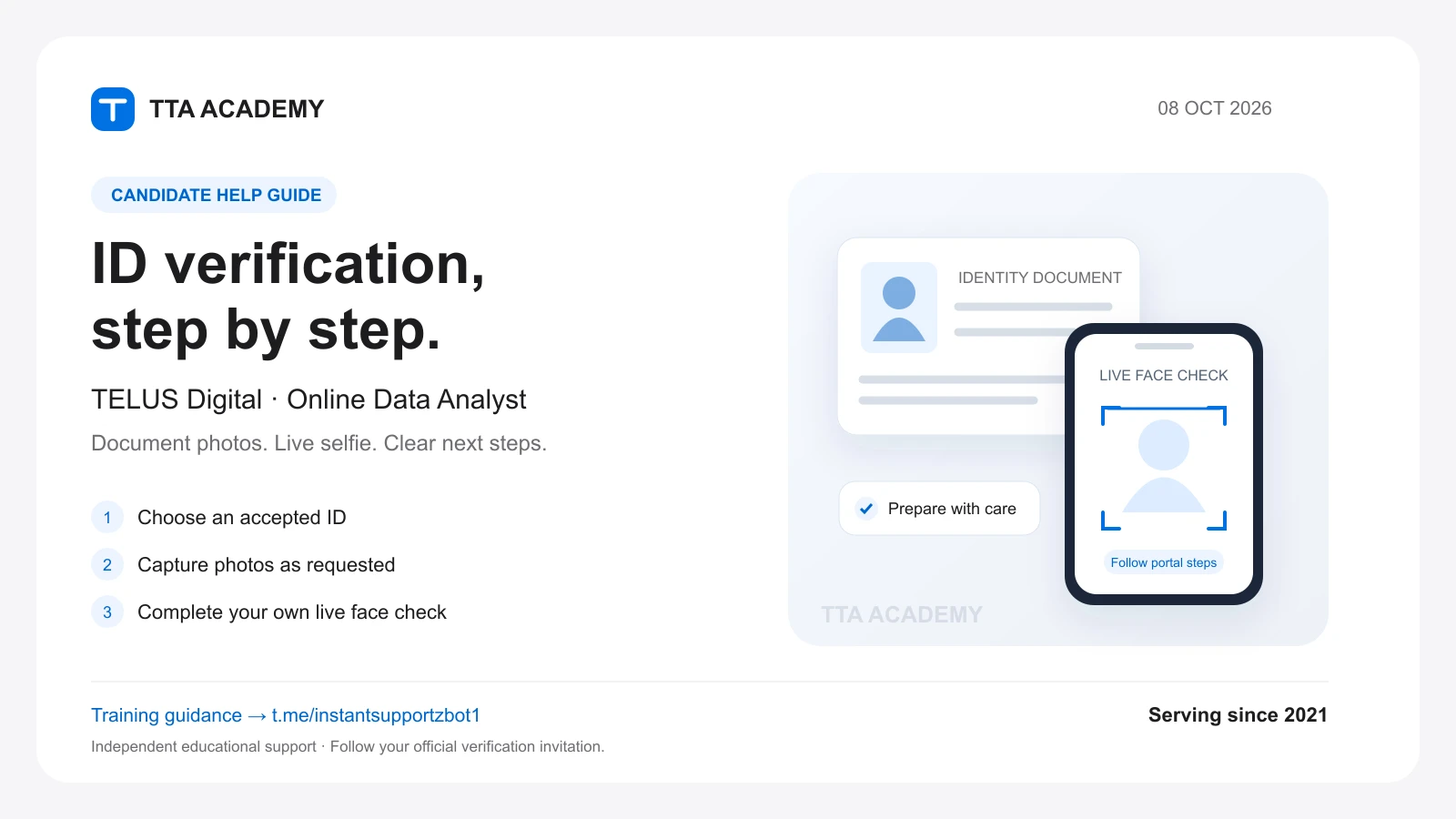
Illustrative demo · TTA Academy · Serving since 2021
STEP 1 OF 7
Official invitation
Apne registered email se verification invitation check karein. Link ki authenticity confirm karke hi continue karein.
Illustration only. Accepted documents, back-photo requirements and face prompts depend on your official invitation. This demo collects no personal data.
TELUS Digital Online Data Analyst – Government ID Upload, Front & Back Photo और Live Face Verification की पूरी जानकारी (2026)
हमें TTA ACADEMY पर कई उम्मीदवारों के सवाल आते हैं:
• TELUS Digital Online Data Analyst में Document Verification कैसे करें?
• कौन-सी Government ID Upload करनी है?
• ID Card के Front और Back दोनों की फोटो चाहिए?
• Live Face Verification कैसे करना है?
• Mobile से Verification कर सकते हैं या Laptop जरूरी है?
• ID Verification Failed या Pending हो जाए तो क्या करें?
अगर आपके भी यही सवाल हैं, तो यह गाइड आपके लिए है। इसमें हम आसान भाषा में TELUS Digital Online Data Analyst की ID Verification प्रक्रिया समझा रहे हैं।
1. TELUS Digital Online Data Analyst Remote Work क्या है?
TELUS Digital Online Data Analyst एक Remote / Work From Home Remote Work Opportunity है, जिसमें चयनित उम्मीदवार ऑनलाइन Data Evaluation और Maps से संबंधित Tasks पर काम कर सकते हैं।
इस प्रकार के काम में Maps Search Results की Relevance, Business Name, Category, Address और Location Accuracy जैसी चीजों का मूल्यांकन करना पड़ सकता है।
यह उन उम्मीदवारों के लिए उपयोगी अवसर हो सकता है जो घर से काम करना चाहते हैं और Long-Term Remote Freelancing में रुचि रखते हैं।
ध्यान दें: यह Long-Term Work From Home Opportunity के रूप में देखा जा सकता है, लेकिन Permanent Employment, नियमित Tasks, निश्चित Earnings या लंबे Contract की गारंटी नहीं होती। Work Availability और Contract Duration प्रोजेक्ट की आवश्यकताओं पर निर्भर करते हैं।
2. TELUS Digital ID Verification क्यों करता है?
TELUS Digital की Recruitment और Onboarding प्रक्रिया में Identity Verification एक महत्वपूर्ण चरण है।
इसका उद्देश्य उम्मीदवार की पहचान की पुष्टि करना, सही Country Eligibility जाँचना और गलत पहचान के इस्तेमाल को रोकना है।
उम्मीदवार को Verification के दौरान अपनी वास्तविक जानकारी और वैध Government ID का उपयोग करना चाहिए।
3. Document Verification के लिए क्या चाहिए?
Verification शुरू करने से पहले ये चीजें तैयार रखें:
1. अपने Country की Accepted Government ID।
2. Original और Valid ID Card।
3. ID की साफ Front Side Photo।
4. ID की साफ Back Side Photo, यदि माँगी जाए।
5. Camera वाला Mobile Phone या Laptop।
6. अच्छा Internet Connection।
7. Live Face Verification के लिए पर्याप्त Lighting।
Important: अपने Country के लिए Verification Portal में सूचीबद्ध Government ID का ही चयन करें।
उदाहरण के लिए, भारतीय उम्मीदवारों के पास Aadhaar Card, PAN Card, Passport, Driving Licence या Voter ID हो सकती है। लेकिन इनमें से कौन-सी ID स्वीकार होगी, यह Verification Portal की Accepted Document List से ही निर्धारित होगा।
4. Step-by-Step: TELUS Digital Document Verification कैसे करें?
Step 1 – Official Verification Link खोलें
TELUS Digital की ओर से प्राप्त ID Verification Email देखें।
Email में दिए गए Official और Secure Verification Link को खोलें। किसी अनजान व्यक्ति द्वारा भेजे गए Link पर Documents Upload न करें।
Step 2 – अपना Country और Government ID चुनें
Verification Portal में आपके Country के अनुसार Accepted Government ID के विकल्प दिखाई दे सकते हैं।
सूची में उपलब्ध अपनी Original Government ID चुनें।
Step 3 – Government ID की Front Side Upload करें
सबसे पहले ID Card के सामने वाले हिस्से की साफ फोटो लें।
ध्यान रखें:
• ID के चारों कोने दिखाई दें।
• Name, Photo और अन्य जानकारी स्पष्ट हो।
• फोटो धुंधली न हो।
• ID पर बहुत अधिक Reflection या Shadow न हो।
• Edited या Fake Document इस्तेमाल न करें।
Step 4 – Government ID की Back Side Upload करें
यदि Portal दोनों तरफ की Photo माँगता है, तो ID को पलटकर Back Side की भी साफ Photo Upload करें।
Back Side पर मौजूद Details स्पष्ट दिखाई देनी चाहिए।
Front और Back दोनों की Photo तभी Upload करें जब Verification Portal में ऐसा निर्देश दिया गया हो। कुछ Document Types के लिए अलग प्रक्रिया हो सकती है।
Step 5 – Live Face Verification पूरा करें
Document Upload के बाद Portal आपसे Live Face Verification करने के लिए कह सकता है। यह सामान्य तैयारी की गाइड है; आपके invitation में दिया गया flow और verification provider अलग हो सकता है।
इसमें आपको Camera के सामने अपना वास्तविक चेहरा दिखाना होता है।
• Camera Permission Allow करें।
• चेहरे को स्क्रीन पर दिए गए Frame में रखें।
• पर्याप्त रोशनी में बैठें।
• जरूरत पड़ने पर Portal के निर्देशों के अनुसार Face या Head Movement करें।
• Verification पूरा होने तक स्क्रीन पर दिए निर्देशों का पालन करें।
Face Verification स्वयं करें। दूसरे व्यक्ति, Recorded Video या AI-generated Face का उपयोग न करें।
Step 6 – Verification Submit करें
सभी आवश्यक Steps पूरे करने के बाद Submit या Continue पर क्लिक करें।
यदि Confirmation Message दिखता है, तो उसे ध्यान से पढ़ें। उसके बाद TELUS Digital के अगले Official Email या Instructions की जाँच करते रहें।
5. Mobile या Laptop – किससे ID Verification करना बेहतर है?
हमारी सलाह: अच्छे Camera वाले Mobile Phone से Verification करना ज्यादा सुविधाजनक रहता है।
Mobile में Government ID की साफ Photo लेना और Live Face Verification पूरा करना आसान हो सकता है।
लेकिन उम्मीदवार Laptop या Desktop से भी Verification कर सकते हैं, यदि Verification Portal इसकी अनुमति देता है।
Mobile: ID photos और live face verification लेना सुविधाजनक हो सकता है। Laptop/Desktop: supported होने पर webcam या upload सुविधा उपयोग करें। दोनों में camera permission, browser compatibility और internet जाँचें।
Verification से पहले अपने Mobile या Laptop का Camera, Internet Connection और Browser Permission जरूर जाँच लें।
6. ID Verification Failed या Rejected हो जाए तो?
कई उम्मीदवार हमसे पूछते हैं कि ID Verification बार-बार Failed क्यों हो रहा है।
इसके कुछ संभावित कारण हो सकते हैं:
• Government ID की फोटो Blurred होना।
• गलत या Unsupported ID Select करना।
• Document Details स्पष्ट न होना।
• Name या Date of Birth का Mismatch।
• Live Face Verification में Lighting की समस्या।
• Camera Permission Block होना।
• Verification Link Expire होना।
• Internet या Portal की तकनीकी समस्या।
क्या करें?
सबसे पहले Error Message ध्यान से पढ़ें। Camera और Document Quality जाँचें। यदि Portal Retry का विकल्प देता है, तो निर्देशों के अनुसार पुनः प्रयास करें।
बार-बार Failure आने या Retry उपलब्ध न होने पर TELUS Digital Official Support से संपर्क करें।
7. ID Verification Pending है तो क्या करें?
यदि आपने Verification Submit कर दिया है, लेकिन अभी तक Approval या अगला Update नहीं आया, तो:
1. अपना Registered Email Inbox देखें।
2. Spam और Junk Folder जाँचें।
3. Verification Portal का Status देखें, यदि उपलब्ध हो।
4. Official Instructions में दी गई समय-सीमा पढ़ें।
5. जरूरत पड़ने पर TELUS Digital Support से संपर्क करें।
ध्यान दें कि ID Verification Successful होने का अर्थ अपने आप selection confirmation या Production Access मिलना नहीं है।
8. ID Verification में इन गलतियों से बचें
किसी दूसरे व्यक्ति का Government ID या Face इस्तेमाल न करें। Document Editing, Fake ID, Recorded Face Video या गलत Personal Information का उपयोग न करें।
Verification के दौरान अपनी वास्तविक पहचान का ही उपयोग करें। किसी अनधिकृत व्यक्ति को OTP, Password या अपनी संवेदनशील Government ID Details न दें।
TTA ACADEMY की सलाह: Document Verification स्वयं करें और केवल Official TELUS Digital Verification Portal के निर्देशों का पालन करें।
9. Want to Learn TryRating Maps Evaluation? Join TTA ACADEMY
TELUS Digital Online Data Analyst की ID Verification प्रक्रिया समझने के बाद अगर आप TryRating Maps Evaluation का काम सीखना चाहते हैं, तो TTA ACADEMY आपके लिए Training और Learning Support के बारे में जानकारी देती है। Current batch, fees, language, modules और support duration पहले confirm करें।
TTA ACADEMY भारत में वर्ष 2021 से TryRating Maps Evaluation और संबंधित Remote Work Projects के लिए Training एवं Guidance प्रदान कर रही है।
हमारा उद्देश्य Candidates को Guidelines समझाना, उनकी Practical Skills बेहतर बनाना और उन्हें Quality Work के लिए तैयार करना है।
Training के बारे में क्या पूछें?
नीचे दिए training features आपके साझा किए गए course description पर आधारित हैं। Enrollment से पहले current plan में इनकी availability और scope confirm करें।
• Live Google Meet Classes: Experienced Trainer के साथ Step-by-Step TryRating Maps Training।
• Hindi & English Batches: दोनों भाषाओं में अलग Training Sessions।
• 4 Training Modules: Terminology & General Rules, Relevance, Name & Category, Address & PIN Accuracy।
• Practical Examples: Maps Evaluation के नियमों को उदाहरणों के माध्यम से समझना।
• Private Telegram Discussion Group: Work-related Questions, Rating Rules और Doubts पर चर्चा।
• PDF Notes & Study Materials: Guidelines आधारित Learning Resources।
• Exam Preparation Guidance: Qualification और Assessment Rules समझने में सहायता।
• Post-Training Doubt Support: Course Plan के अनुसार Private Group में अतिरिक्त Guidance।
Who Can Join?
यह Training Beginners, Freelancers और उन उम्मीदवारों के लिए उपयोगी हो सकती है जो TELUS Digital Online Data Analyst, OneForma Maps Evaluation या संबंधित TryRating-based Projects में काम करने की तैयारी कर रहे हैं।
Already Working on TryRating?
यदि आप पहले से Maps Evaluation Tasks कर रहे हैं और Relevance, Name Accuracy, Address Accuracy या PIN Rating में Confusion होता है, तो TTA ACADEMY की Training और Private Discussion Group आपकी Guideline Understanding बेहतर बनाने में मदद कर सकते हैं।
क्या अभी निश्चित रूप से verify नहीं हुआ?
इस specific Online Data Analyst invitation की accepted Indian ID list, front/back की requirement, supported devices, retry limit और approval timeline सार्वजनिक sources से confirm नहीं हुए हैं। Portal और official invitation के निर्देश अंतिम हैं। यह guide किसी active opening या selection की पुष्टि नहीं करती।
Training · Mentorship · Career Guidance · Exam Guidance · Consultation · Freelancing Support
Frequently Asked Questions
TTA ACADEMY is an independent training and career guidance platform — not affiliated with or endorsed by any vendor named on this page. We don't guarantee opportunities, approval, project allocation, or income, and we don't issue certificates. What we do offer:
Articles on this platform are researched, written and reviewed by the TTA ACADEMY team — a group of trainers, mentors, quality specialists and remote-work consultants supporting learners in AI, freelancing, vendor qualification and remote career development.
View Team ProfileReferences & Sources
We link only to official websites, government portals, research papers, official documentation, academic publications, industry reports and vendor documentation.
- TELUS Digital: AI Community identity verification and Sumsub partnership — TELUS Digital · Documentation
- TELUS Digital AI Community: official opportunities and application process — TELUS Digital · Careers
Disclaimer: Information changes over time. TTA ACADEMY is an independent training and career guidance platform — we are not affiliated with or endorsed by any vendor unless explicitly stated. Always verify the latest details directly from the official vendor resources linked on this page.